
PUBG Proximity Chat System Explained
Discover if PUBG has proximity chat in 2026 and learn the real differences between all chat and true distance-based voice features across platforms.
If you've been digging through PUBG settings trying to figure out whether the game has proximity chat, here's the straight answer: not in the true, distance-based sense. PUBG does have voice chat, but it runs on channel selection rather than a real spatial system like Rust, DayZ, or Fortnite, where voices get louder or quieter based on how close players are. In practice, that means KRAFTON splits communication into team voice and an all/open channel, instead of giving you native enemy voice chat tied to physical distance. That distinction matters more than it sounds, especially if you're trying to coordinate with randoms, mess with nearby enemies, or just understand what actually works in 2026.
Does PUBG Have Proximity Chat in 2026
For anyone asking does PUBG have proximity chat in 2026, the short version is: kind of, but only in a very limited and mode-dependent way. On PUBG PC and console, the main voice options are Team Voice and All Voice. Team Voice is exactly what it sounds like — your squad can hear you no matter where they are on the map. All Voice opens communication more broadly, but it still is not proper proximity chat.
That is the key point. PUBG's All Voice works more like a shared broadcast channel than a distance-based voice system. Voices do not naturally fade in as players get closer, and they do not drop off because someone moved farther away. If two players are on the same open channel, they hear each other without the kind of spatial scaling you'd expect from actual proximity chat.
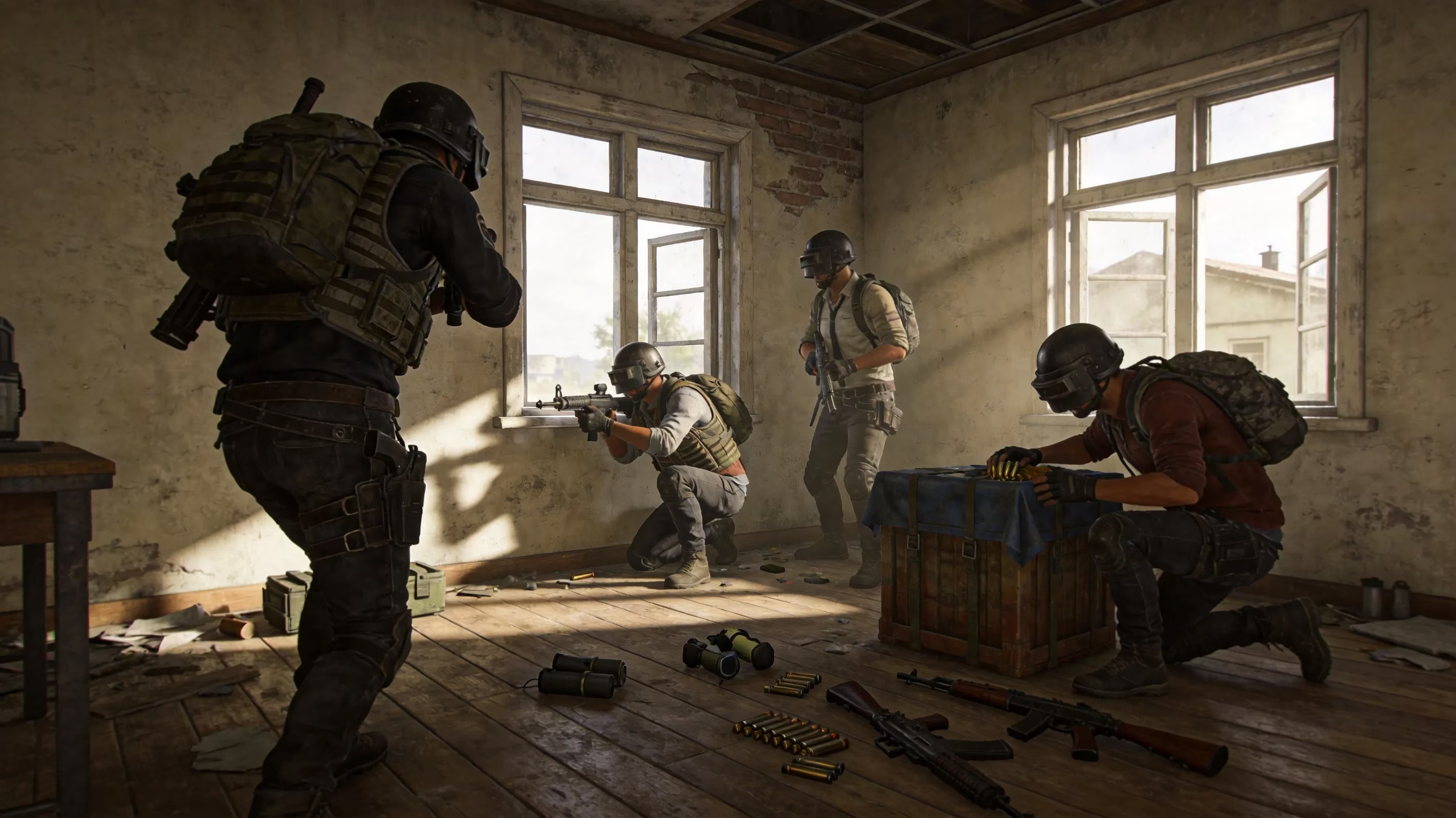
PUBG Mobile sticks pretty closely to the same idea, except it's even more restricted. Standard matchmaking is built around squad-only voice, and there is no built-in cross-team proximity audio in normal modes. So whether you're on PC, console, or mobile, PUBG still does not offer the classic "enemy is right around the corner and I can hear them talking" style of voice interaction.
That difference is worth keeping in mind because proximity chat and all chat are not the same thing. In games like Warzone or Fortnite, proximity chat is tied to in-world distance and creates that extra layer of tension and immersion. PUBG's All Voice is opt-in, channel-based, and much less natural in actual matches, which is why most players don't really treat it as true proximity chat.
PUBG Voice Chat Modes by Platform
The easiest way to see the gap is with a quick platform snapshot. Here's how PUBG voice chat features stack up across the major versions as of mid-2026.
| Platform | Team Voice | All/Open Channel | True Proximity Chat | Push-to-Talk |
|---|---|---|---|---|
| PC (Steam) | Yes | Yes (manual) | No | Yes (configurable) |
| Xbox Series X/S | Yes | Limited | No | Via controller |
| PlayStation 5 | Yes | Limited | No | Via DualSense |
| PUBG Mobile (iOS/Android) | Yes | No | No | No |
| Custom Match / Esports Mode | Yes | Admin-controlled | No | Yes |
On PC through Steam, you get the most control by far. PUBG lets you choose your input and output devices, switch between Open Mic and Push-to-Talk, and adjust voice-related audio settings with a lot more flexibility than the other platforms. One thing players run into pretty often, though, is Steam's own voice layer interfering with PUBG's built-in routing.
Console is a little messier. On PlayStation 5 and Xbox Series X/S, the in-game voice options are there, but platform party systems tend to override them. If you're sitting in an Xbox party or a PlayStation Game Base party, PUBG's internal voice usually gets sidelined completely. That's a huge reason some players assume voice chat is bugged when the real issue is just the console prioritizing party chat.
PUBG Mobile is the most limited of the bunch. In normal battle royale matchmaking, voice is basically squad-only, and you won't see a standard All channel option exposed in the same way. Some custom matches or event-style modes may have extra admin-side voice controls, but for regular players in standard queues, those options are not part of the usual setup.
How PUBG Voice Chat Actually Works
PUBG handles voice through two separate channels that you can switch between during a match. The first one, and the one most players stay on, is the Team channel. This sends your voice only to your squadmates, and it works no matter where everyone is positioned on the map. If you're making callouts, warning teammates about the blue zone, or trying to sync a push, this is the channel doing the heavy lifting.
Then there's the All channel. If you switch to it, your voice can be heard by other players who are also using that same channel. This is where some confusion comes from, because it can create moments that feel a little like proximity chat — especially in the pre-game lobby, on the plane, or during weird close-range encounters where multiple people happen to be listening in. But mechanically, it's still not proximity-based.
In real matches, All Voice is used way less than people expect. Most players don't want to give up clean squad comms just to hear random noise, trash talk, or the occasional enemy trying to bait them. So while the option exists, it rarely becomes a consistent part of mid-match communication.
If you're trying to play seriously, Push-to-Talk is still the better choice. It keeps background noise out, stops accidental mic leaks, and makes comms much cleaner during rotations or final-circle fights. Open Mic is fine for casual sessions, but it can get messy fast once keyboard noise, room audio, or random interruptions start bleeding into the channel.
One thing that trips people up is PUBG's sound design itself. The game absolutely has positional audio for footsteps, gunfire, and vehicles, and it's honestly one of the most important parts of surviving fights. But that positional sound system is completely separate from voice. Voice chat has no real spatial simulation attached to it, so someone across Erangel on the same All channel can sound just as loud as someone standing nearby. That's exactly why PUBG doesn't count as having true proximity chat.
How to Enable PUBG Proximity Chat or Closest Alternative
Since PUBG doesn't natively support real proximity chat, the closest thing you can do is set up the All Voice channel properly and make sure your audio devices are configured the right way. In-game, the path starts at Settings → Audio, where you can change Voice Chat Mode, pick your microphone and output device, and tweak volume levels.
Input and output selection matters a lot more than people think, especially on PC. If you have multiple audio devices connected, Windows can easily point PUBG at the wrong mic — like a webcam microphone or built-in motherboard input — instead of your headset. When that happens, voice quality tanks or your mic just doesn't work at all. Setting your preferred headset as the Default Communication Device in Windows usually fixes that.
Push-to-Talk setup is another thing worth checking right away. On PC, the default key is usually T, but a lot of players remap it to something easier to hit in a fight, like a mouse side button. After changing it, it's a good idea to test in Training Mode first instead of finding out mid-match that your keybind never saved.
Console players have one extra hurdle: party chat conflicts. If you're on PlayStation or Xbox and still sitting in a system-level party, PUBG's in-game Team or All channels may not function the way you expect. Before trying to use PUBG voice, you need to leave that party session completely.
PC and Steam
On Windows, the first thing to verify is that your microphone is set as the Default Communication Device in the Recording tab under Sound settings. After that, check Steam → Settings → Voice and make sure Steam itself is using the correct input device. If Steam voice and PUBG voice are both trying to manage transmission behavior, especially with Push-to-Talk, you can end up with overlap or inconsistent mic behavior.
The Steam Overlay is another common trouble spot. If PUBG voice is stuttering, muting, or acting strangely, turning off the overlay through Steam → Settings → In-Game → uncheck Enable Steam Overlay can help. It's not always the culprit, but when it is, the fix is pretty immediate.
There's also a small matchmaking-related detail worth mentioning. KRAFTON expanded same-language matchmaking to map-selection modes in the AS and SEA regions with Update 40.2, and that makes the All channel a bit more practical than it used to be. If more players in your lobby actually share a language, open voice becomes at least somewhat more usable.
PlayStation and Xbox
On PlayStation 5, you'll want to check Settings → Users and Accounts → Privacy → Voice Chat and make sure it's set to Allow. Even if PUBG itself is configured correctly, blocked platform permissions can stop voice from working altogether. You also need to leave any active Game Base party before launching into a match if you want PUBG's internal voice to take over.
On Xbox Series X/S, the path is Profile & System → Settings → Account → Privacy & Online Safety → Xbox Privacy → Communication & Multiplayer. Cross-network voice permissions need to be enabled there. If those settings look fine but your mic still drops, Quick Resume may be the issue.
This one catches a lot of Xbox players. PUBG on Series X/S can lose mic functionality after being resumed through Quick Resume, and the clean fix is usually a full quit and relaunch. If voice starts acting weird, don't just suspend and reopen — fully restart the game.
PUBG Mobile
On mobile, the first thing to check is simple: microphone permissions. On iPhone, go to Settings → Privacy & Security → Microphone → PUBG Mobile. On Android, the usual path is Settings → Apps → PUBG Mobile → Permissions → Microphone.
Some Android skins add another layer on top of that. MIUI, ColorOS, and OneUI, for example, may include extra controls under Special App Access or similar permission menus. So if PUBG Mobile still can't use your mic even though the normal permission is enabled, that's the next place to look.
If permissions are already correct and voice is still bugging out, clearing cache can help. The path is Settings → Apps → PUBG Mobile → Storage → Clear Cache, and it often fixes lingering audio desync or voice glitches without touching account data. Keeping the app updated matters too, since PUBG Mobile has had multiple patches specifically aimed at voice chat stability on certain Android versions.
PUBG Voice Chat Not Working Fixes
The most common PUBG voice issue is honestly a basic one: the wrong channel is selected. If you're on Team and the person you're trying to talk to is on All, or the other way around, nothing is going to line up. Before digging into deeper fixes, make sure both sides are actually using the same channel.
Muted teammates are another easy one to miss. PUBG lets you mute individual players through the roster, and those mute settings can stick around longer than people realize. If someone seems completely silent, check the squad list first before assuming the game is broken.
When the issue is network-related, troubleshooting gets a bit more technical. PUBG uses peer-to-peer voice routing in some situations, so a Strict NAT type can block voice traffic even while the match itself runs normally. On PlayStation that's Type 3; on Xbox it's Strict. Opening UDP port 7086 and getting your setup to Open or at least Moderate NAT usually clears up most of those voice failures.
On PC, firewall rules can also get in the way. If the PUBG executable doesn't have the right outbound permissions, voice packets may fail even though gameplay traffic still gets through. It's worth checking Windows Firewall or any third-party security suite if your mic works everywhere else but not in PUBG.
Then there's hardware. Outdated Realtek or AMD audio drivers are a surprisingly common cause of mic detection problems after Windows updates. Updating through Device Manager can work, but downloading the latest version directly from your motherboard manufacturer's support page is often the safer fix.
Wireless headsets bring their own headaches too. If you're using a 2.4 GHz dongle, nearby router interference can cause random cutouts or unstable voice quality. Keeping firmware current and making sure the dongle has a clean signal path can save you a lot of frustration.
Best Use Cases for PUBG Proximity Chat
Even without true proximity chat, PUBG's All Voice still has a few interesting uses if you go into it on purpose. Hot drops are probably the funniest example. In places like Pochinki or School on Erangel, some players flip to All just to bluff, taunt, or throw out fake negotiations with nearby squads. It's not the same as a real spatial voice system, but it scratches a similar itch.
Random squad play is where PUBG's built-in voice matters the most. If you're queueing with strangers and don't have a Discord call ready, in-game comms are all you've got. Clean Push-to-Talk setup and short, useful callouts — compass direction, landmark, enemy count — go a long way toward making up for the lack of proximity-based voice cues.
There is also a small mind-game angle to the All channel. In tense late-game situations, some players will switch over and feed false information — fake reload calls, fake movement cues, that kind of thing — just to create hesitation. It's definitely niche, but it shows how even a limited open channel can still create some psychological pressure.
That said, when you need reliable communication for Ranked, scrims, or organized Custom Matches, Discord is just better. Lower latency, persistent channels, better device handling, and cross-platform flexibility make it the default choice for serious squads. PUBG's native voice is fine for randoms and casual sessions, but it doesn't really compete once coordination starts to matter.
Conclusion
So, does PUBG have proximity chat in the way most players mean it? No. PUBG uses a channel-based voice system with Team Voice and All Voice, and neither one applies real-time distance scaling between players. The closest thing available is the All channel, which lets you talk across teams if everyone involved is on that same channel, but that's still a manual opt-in system rather than real environmental proximity chat.
If you want the best voice setup in 2026, the platform matters. PC players should stick with Push-to-Talk, confirm the correct Windows communication device, and disable the Steam Overlay if voice starts acting up. Console players need to leave party chat before relying on in-game comms, and Xbox users should fully restart PUBG instead of trusting Quick Resume when mic issues show up. PUBG Mobile players should double-check OS microphone permissions and stay current on updates, since mobile voice bugs are often patch-related.
For squads that want the most stable and flexible communication, Discord is still the best answer no matter where you play. PUBG's built-in voice covers the basics, especially for casual matches and random teammates, but true proximity chat remains something the game simply does not offer.