
PUBG Mobile PC Emulator Setup and Optimization Guide
Discover the definitive guide on how to play PUBG Mobile on PC using Tencent's official GameLoop emulator for optimal keyboard-and-mouse support and seamless performance. This comprehensive setup covers installation, system requirements, graphics optimization, and control settings to ensure a flawless gaming experience. Master the essential steps and configurations to elevate your PUBG Mobile gameplay on a desktop.
If you've been trying to figure out how to play PUBG Mobile on PC, the good news is that the process in 2026 is pretty painless. Tencent's official emulator, GameLoop, is still the go-to option if you want proper keyboard-and-mouse support, stable performance, and matchmaking that keeps emulator players in their own pool. In this guide, we're going through the full setup from start to finish: install steps, PC requirements, graphics and FPS settings, controls, sensitivity, optimization, and a few emulator questions players still ask all the time.
How to Play PUBG Mobile on PC
The simplest and most reliable way to run PUBG Mobile on a desktop or laptop is still through an emulator. More specifically, GameLoop — formerly known as Tencent Gaming Buddy — remains Tencent's official Android emulator built around its own mobile games, with PUBG Mobile being one of the biggest. Because it's the publisher's own platform, updates usually land very quickly, often within 24 hours of a patch hitting Android and iOS.
You can technically launch the game through general Android emulators like BlueStacks or LDPlayer, and some players do. Still, GameLoop offers the cleanest overall experience: better integration with the game, more dependable anti-cheat compatibility, and fewer account-login headaches. If you want the safest and least annoying route, this is it.
As of 2026, GameLoop fully supports Windows 10 64-bit and Windows 11. Windows 7 is no longer supported, so if you're still on an older OS, you'll need to upgrade before doing anything else. Once the emulator is installed, you just log into PUBG Mobile with your existing account — Facebook, Twitter, or Apple login all work for syncing your mobile profile. That means your Royal Pass progress, rank, cosmetics, and crew data carry over automatically, with no need to make a separate PC account.
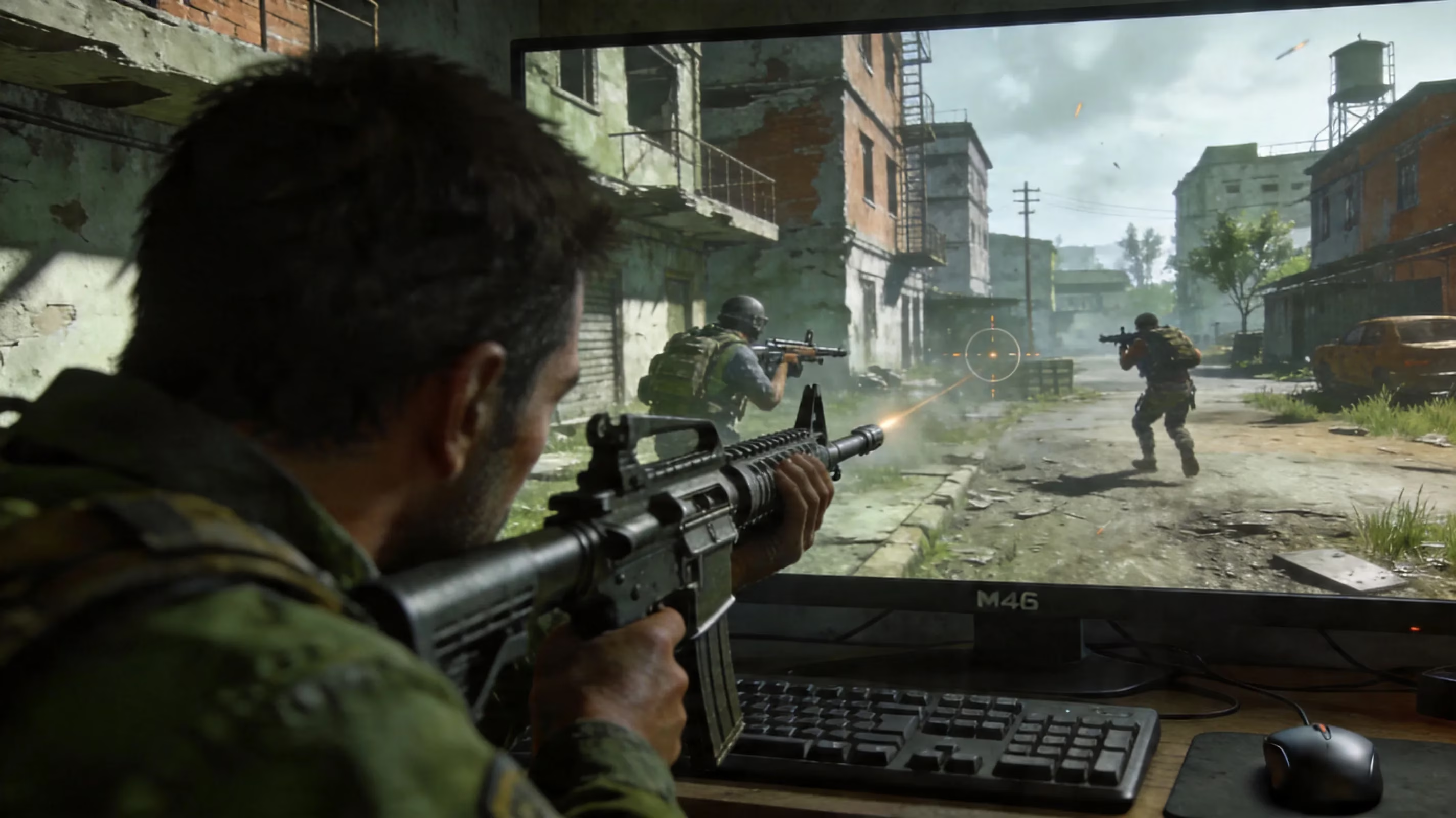
PUBG Mobile on PC Requirements
Before you install anything, it's worth checking whether your system can actually handle the game. If your hardware falls short, you're much more likely to deal with frame drops, texture loading issues, and random crashes right in the middle of fights.
| Category | Minimum Spec | Smooth/Recommended Spec |
|---|---|---|
| OS | Windows 10 64-bit | Windows 10/11 64-bit |
| CPU | Intel Core i5-4430 / AMD FX-6300 | Intel Core i5-7600K / AMD Ryzen 5 1600 |
| RAM | 8 GB | 16 GB |
| GPU | NVIDIA GTX 960 2 GB / AMD R7 370 2 GB | NVIDIA GTX 1060 3 GB / AMD RX 580 |
| Storage | 10 GB free (emulator + game) | 30 GB+ on SSD |
| DirectX | Version 11 | Version 11 |
| Network | 4 Mbps stable | 10 Mbps+ wired preferred |
There are also two checks that matter a lot beyond raw specs:
-
Virtualization Technology: Make sure VT-x on Intel or AMD-V on AMD is enabled in BIOS. GameLoop can still open without it, but performance is usually way better when hardware virtualization is turned on.
-
Hyper-V status: If you're using Docker, WSL2, or Windows Sandbox, double-check that Hyper-V is disabled. It tends to clash with Android emulators and can cause weird instability or failed launches.
If you're on a lower-end machine — integrated graphics, just 4 GB of RAM, or an old HDD — keep expectations realistic. PUBG Mobile may still run, but you'll likely be stuck on the lowest graphics settings with a frame rate cap well under 60 FPS.
PUBG Mobile PC Setup Guide
GameLoop Install Steps
Installing GameLoop is pretty straightforward, and in most cases it takes around 15 to 25 minutes depending on your connection speed.
-
Download the official GameLoop installer from gameloop.com. Stick to the official source, because third-party mirrors often come with outdated files or bundled junk.
-
Run the installer, approve the permissions prompt, and let GameLoop finish setting itself up. The emulator core installs first.
-
Open GameLoop, head to the Game Center tab, and search for PUBG Mobile. Hit Install to start downloading the game package through the emulator.
-
Wait for the download to finish, then launch PUBG Mobile from inside GameLoop. On first boot, the game will usually grab extra resource files before you reach the login screen.
-
Sign in with your linked account — Facebook, Apple, or Krafton account — and your progress should sync automatically, including inventory, rank, and Royal Pass data.
The PUBG Mobile package itself is usually around 800 MB to 1.2 GB, depending on the current season and asset bundle size.
First-Launch Settings
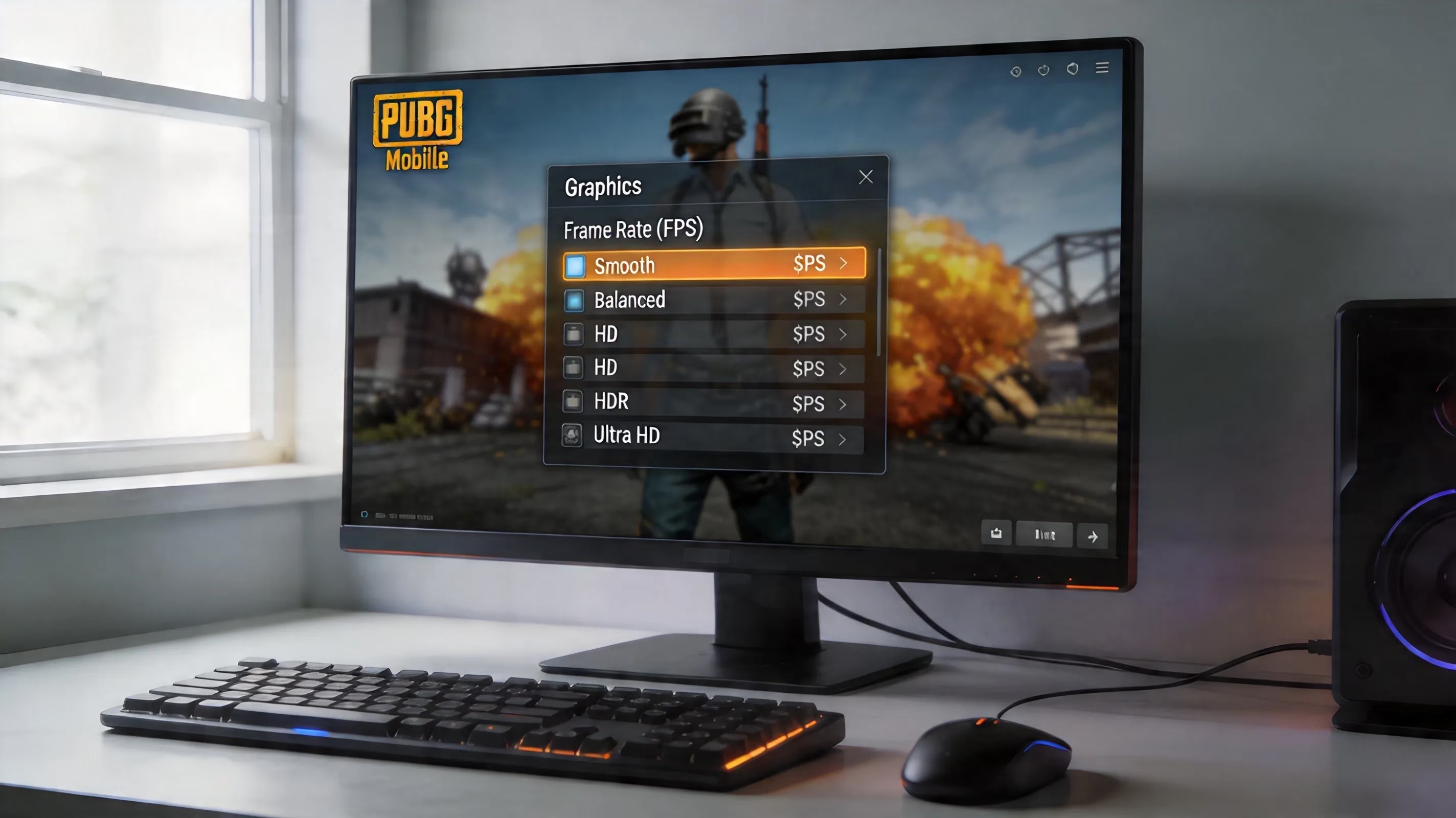
Before jumping into your first match, spend a few minutes on the emulator settings. It makes a bigger difference than a lot of players expect. GameLoop gives you three main resolution presets: 720p, 1080p, and 2K.
If your PC is close to the minimum requirements, 720p with OpenGL is the safer pick. For mid-range systems — think GTX 1060-level GPU or better — 1080p in DirectX mode is usually the sweet spot. The 2K preset is really meant for stronger rigs, like a GTX 1080 Ti or RX 6700 XT and at least 16 GB of RAM.
The FPS cap in GameLoop can be set to 30, 60, or 90 FPS. For ranked play, 60 FPS is basically the minimum you want if your hardware can handle it. 90 FPS is possible on recommended-spec systems, but only if both the emulator and the in-game settings line up properly. Inside PUBG Mobile, set the frame rate option to Extreme if you're aiming for higher refresh gameplay and want the engine settings to stay in sync.
One more thing: in GameLoop's advanced settings, don't allocate more than 50% of your total physical RAM to the emulator. Giving it too much memory can actually make Windows feel sluggish or unstable while you're playing.
PUBG Mobile PC Controls and Sensitivity
Keyboard and Mouse Layout
GameLoop comes with a default control scheme built specifically for PUBG Mobile, so you don't have to map every action manually. Right out of the gate, movement is on WASD, sprint is Left Shift, crouch is C, and prone is Z. It feels familiar if you've played basically any PC shooter before.
ADS (Aim Down Sights) is mapped to the right mouse button, which is exactly where most players want it. The game's peek and lean system — one of the mechanics that gives PUBG Mobile a bit more tactical depth — is set to Q for left lean and E for right lean by default. You can also switch those between hold and toggle behavior through the control overlay if that suits your playstyle better.
Other important defaults are easy enough to remember:
-
Tab: Inventory
-
M: Map
-
T: Emote wheel
Driving is handled automatically through GameLoop's context-sensitive keymap. Once you get into a vehicle, the emulator swaps to driving controls on its own, usually with W for accelerate, S for reverse, and Space for handbrake. That's one of the areas where GameLoop clearly beats more general emulators, since those often need separate manual bindings for different gameplay states.
Sensitivity Tuning
This is where a lot of players lose time early on. GameLoop's default mouse sensitivity tends to feel way too high, mostly because it's built around a mobile input baseline rather than standard PC shooter habits. A good first move is lowering the emulator DPI setting into the 800 to 1200 range before you even start fine-tuning in-game.
Inside PUBG Mobile, the sensitivity menu lets you adjust several layers separately:
-
Camera sensitivity for free look and third-person movement
-
ADS sensitivity for scoped aiming
-
Per-scope sensitivity for red dot, 2x, 3x, 4x, 6x, and 8x
-
Gyroscope sensitivity if you're using supported hardware with gyro input
If you have a gaming mouse with adjustable polling rate, setting it to 1000 Hz usually gives the best input response. For DPI, most players land somewhere between 800 and 1600. Go much higher than that and long-range tracking can start to feel twitchy, especially with higher-magnification scopes.
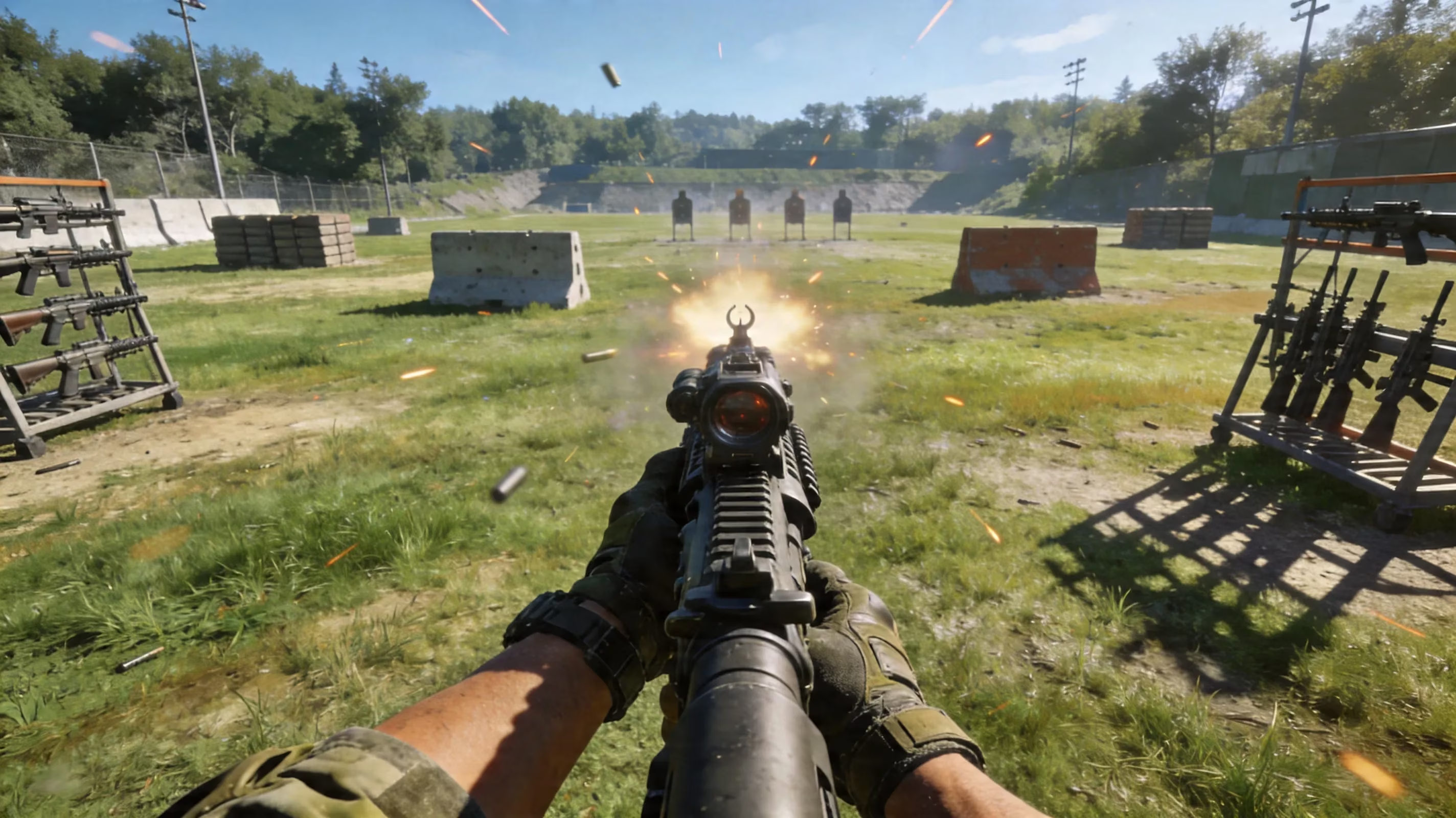
After every major sensitivity change, head straight into Training Ground. Honestly, that's the fastest way to tell whether your settings are actually usable. Spend 15 to 20 minutes doing recoil control with weapons like the M416 and AKM, then test both close-range hip-fire and longer ADS tracking on moving targets. If it feels off there, it'll definitely feel worse in ranked.
PUBG Mobile on PC Performance Optimization
When players first start learning how to play PUBG Mobile on PC, the same three issues usually show up: lag, stutter, and crashes. The upside is that all three are pretty manageable once you know what to check.
Lag and stutter usually come from Windows processes fighting the emulator for resources. Closing your browser, disabling the Discord overlay, and making sure Windows Update isn't doing something in the background can free up a surprising amount of CPU and RAM. You can also set GameLoop's process priority to High in Task Manager for a bit more breathing room.
DirectX vs OpenGL is another setting worth testing instead of guessing. In general, DirectX tends to give better frame pacing on newer NVIDIA drivers — especially version 555.85 or later — and on AMD systems running Adrenalin 24.5.1 or later. On older hardware or integrated graphics, OpenGL often ends up being more stable. The best move is to test both in Training Ground rather than switching mid-ranked session.
Crashes can also come from outdated GPU drivers, low storage space, or conflicting software running in the background. Make sure your graphics drivers are current, keep enough free disk space available, and avoid stacking too many overlays or monitoring tools on top of the emulator.
For laptop players, thermal throttling is a huge one. Once your CPU or GPU gets too hot, clocks drop automatically, and your frame rate can tank hard in the middle of a fight. Play while plugged in, keep the vents clear, and use a cooling pad if your laptop already runs hot. It sounds basic, but it helps a lot more than people think.
PUBG Mobile Emulator Matchmaking and FAQ
One of the biggest questions around emulator play is matchmaking, and the answer is pretty clear: PUBG Mobile separates emulator players into emulator lobbies. The game detects when you're using an Android emulator and matches you accordingly. That applies whether you're on GameLoop, LDPlayer, or something else.
So no, you won't be thrown into normal touchscreen-only lobbies in solo, duo, or squad by default. The only time mobile players get mixed into that environment is when a mobile user manually joins an emulator player's party. Even then, the lobby is still matched against emulator-capable opponents. This system has been around since the Tencent Gaming Buddy days and is still active in 2026.
If you're worried about ban safety, the rules are pretty simple:
-
Use GameLoop from the official source
-
Avoid third-party key-mapping tools
-
Don't run USB debugging or root-style utilities alongside the emulator
-
Keep the install clean and unmodified
PUBG Mobile's anti-cheat doesn't just look at the emulator itself — it also tracks suspicious input behavior over time. If your recoil control or burst timing looks unnaturally perfect across sessions, that can still raise flags. A normal GameLoop install on a standard Windows setup does not carry extra ban risk by itself.
Here's how the emulator options compare in 2026:
| Emulator | PUBG Mobile Optimization | VT Required | Platform |
|---|---|---|---|
| GameLoop | Native (Tencent official) | Optional | Windows 10/11 |
| LDPlayer 9 | General emulator | Recommended | Windows 10/11 |
| BlueStacks 10 | General emulator | Recommended | Windows / macOS |
| MuMu Nebula | Lightweight, no-VT | No | Windows |
A quick reality check on Mac and controller support: GameLoop still does not have a macOS version in 2026. If you're on Mac, your options are limited. BlueStacks 10 has an Apple Silicon-native build that can technically run PUBG Mobile, but it isn't officially supported and may create anti-cheat concerns depending on the session.
As for controllers, GameLoop does support native gamepad mapping through its control overlay, so Xbox and PlayStation controllers can be used. That said, using a controller does not put you into mobile-only lobbies. Matchmaking is based on emulator detection, not whether you're using mouse and keyboard or a gamepad.
Conclusion
The best way to run 绝地求生 Mobile on PC in 2026 is still a clean GameLoop setup on a Windows 10 or Windows 11 machine that hits at least the recommended specs. If you enable VT in BIOS, disable Hyper-V, set a realistic resolution and FPS cap, and dial in your ADS sensitivity before queuing, the experience goes from merely playable to genuinely solid.
At the end of the day, if you know how to play PUBG Mobile on PC the right way, you get the comfort of a full desktop setup without giving up your mobile account progress or the game's free-to-play ecosystem. Stick with the official emulator, tune your settings around your actual hardware, and you should be in a great spot for smoother fights and more chicken dinners.